Authentication
Every request to the AI API except the model catalog must include a
bearer token in the Authorization header:
Authorization: Bearer <token>The model catalog (GET /v1/models and
GET /v1/models/{owner}/{model}/schema) is public and requires no
authentication.
API keys are the credential for every developer integration, including MCP clients. You create and revoke them in the WP Engine User Portal.
Key types
Section titled “Key types”There are two types of key, and the difference is whether the key carries a person:
| Type | Prefix | Acts as | Can run WordPress abilities | Use for |
|---|---|---|---|---|
| User | wpe_pat_ |
The person who created it | Yes | MCP clients, and anything acting for a person |
| Account | wpe_ |
Nobody | No | Service-to-service calls and automation |
The prefix is the quickest way to tell which kind you pasted into a client.
A user key is visible only to the person who created it. Nobody else on the account can see it, edit it, or revoke it — to them it does not exist. Take that into account before a user key becomes load-bearing in shared infrastructure.
Creating a key
Section titled “Creating a key”- In the WP Engine User Portal, go to AI → Gateways & API → API Keys.
- Select Create API Key.
- Enter a Name that tells you where the key is used, such as
My Company Production. - Choose the Key Type — Account or User.
- Choose the Permissions:
- Full access — write on every scope.
- Read only — read on every scope.
- Restricted — set Chat, Image, Speech, Transcribe, and MCP individually to Write, Read, or None.
- Select Create Key, then copy the secret. It is displayed once.
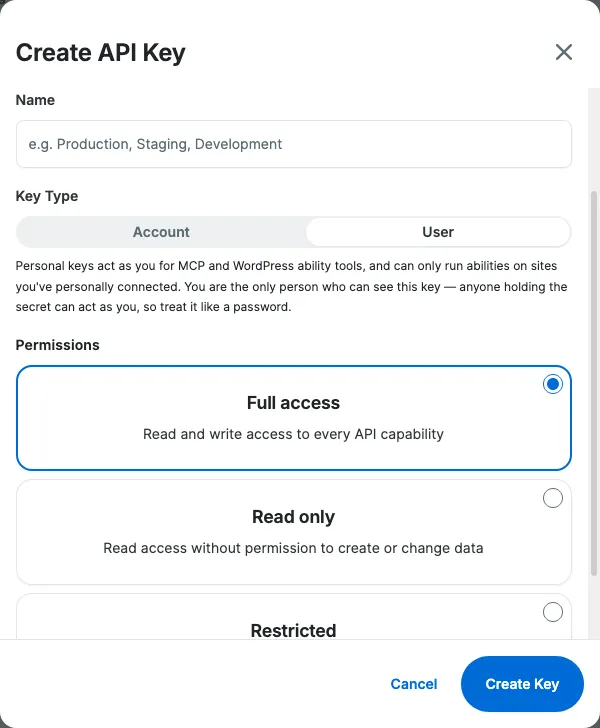
Scopes
Section titled “Scopes”Every endpoint requires a scope at a level — read or write, where write
also grants read. A key that does not hold the level its endpoint requires
returns 403.
A key’s scopes come from the permissions you picked when you created it.
Full access and Read only cover every scope in the table below.
Restricted lets you set chat, image, speech, transcribe, and mcp
individually; the remaining scopes are none on a restricted key, so pick
Full access or Read only if you need the knowledge base, agents, or
sessions endpoints.
| Scope | Covers |
|---|---|
chat |
POST /v1/chat/completions, POST /v1/messages, POST /v1/messages/count_tokens, POST /v1/content/summarize, POST /v1/content/suggest-taxonomy. All need write. |
image |
POST /v1/images/generations and POST /v1/images/alt-text. Both need write. |
speech |
POST /v1/audio/speech. Needs write. |
transcribe |
POST /v1/audio/transcriptions. Needs write. |
collections |
Knowledge base collections under /v1/kb/collections, and /v1/sites/{site_identifier}. read to get or list, write to create, update, or delete. |
documents |
Documents under /v1/kb/collections/{id}/documents. read to fetch one, write to index or delete. |
search |
POST /v1/kb/collections/{id}/search. Needs read. |
agents |
/v1/agents and /v1/sessions. read to get or list, write to create, update, archive, or delete. |
session_events |
Session events and response feedback under /v1/sessions/{session_id}. Accepted in place of agents on those routes only. |
mcp |
/v1/mcp. Needs write. Grant it to a user key before connecting an MCP client. |
Keys and MCP
Section titled “Keys and MCP”An MCP client needs a key with mcp at write. There is no read tier
— a key holding mcp: read authenticates and then fails every tool
call with a 403.
Running a WordPress ability needs a user key on top of that. An ability runs as somebody, and the server checks that that person has connected their WordPress account to the target site. An account key carries nobody for the ability to run as. So on a user key:
run_site_abilitychecks that they have connected their WordPress account to the target sitewp_connection_statusinlist_account_sitesreports whether they are connected, site by site- Audit logs name them as the acting user for every ability run
Creating a user key does not share your WordPress account connections with whoever holds the key later; the check is against the connection, not the key.
An account key still works for ping, list_account_sites, and the
knowledge base tools. It can never execute an ability.
To set a client up, see Connect Claude Code or Connect Claude Desktop. To poke at the server directly, MCP Inspector takes the same header:
npx @modelcontextprotocol/inspector \ --cli https://api.ai.wpengine.com/v1/mcp \ --transport http \ --header "Authorization: Bearer wpe_pat_abc123..." \ --method tools/listWhen a key is rejected
Section titled “When a key is rejected”A rejected key fails at the HTTP layer, before the request reaches the endpoint it was aimed at. Both responses below use the gateway’s standard error envelope — Errors documents its fields. What follows is what each one means for a key.
401: the key was not accepted
Section titled “401: the key was not accepted”HTTP/1.1 401 UnauthorizedWWW-Authenticate: Bearer realm="ai-services"
{ "error": { "message": "invalid or revoked API key", "type": "authentication_error", "code": 401, "request_id": "77e3a50c925779840eb98bb29d2a6c0d" }}403: the key is missing a scope
Section titled “403: the key is missing a scope”HTTP/1.1 403 Forbidden
{ "error": { "message": "API key does not have 'write' permission for scope 'mcp' (granted: 'none').", "type": "permission_error", "code": 403, "request_id": "3c1f9a7e05b24d6c8e2a41f0b9d7e615" }}Unlike a 401, this one names the scope and the level you were granted. Edit the key’s permissions under API Keys in the User Portal to grant the scope at the level the table above lists, or use Full access while you’re testing.
Rotating a key
Section titled “Rotating a key”Keys do not expire on their own, and there is no rotation endpoint. Rotating is creating a replacement and revoking the original:
- Create a new key with the same type and permissions.
- Deploy it to your application, or update your MCP client configuration.
- Confirm the new key works.
- Revoke the old key.
The two keys work side by side for as long as you need, so there is no window where neither authenticates. Nothing forces a rotation, which is why it’s worth putting on a schedule rather than doing it only after something goes wrong.
Revoking a key
Section titled “Revoking a key”- In the WP Engine User Portal, go to AI → Gateways & API → API Keys.
- Find the key in the list and select Delete (Trash Can).
- Confirm with Revoke Key.
A revoked key stops authenticating and returns 401 from then on.
Revocation cannot be undone — there is no way to reactivate a revoked
key, only to create a new one. A user key can be revoked only by
the person who created it.